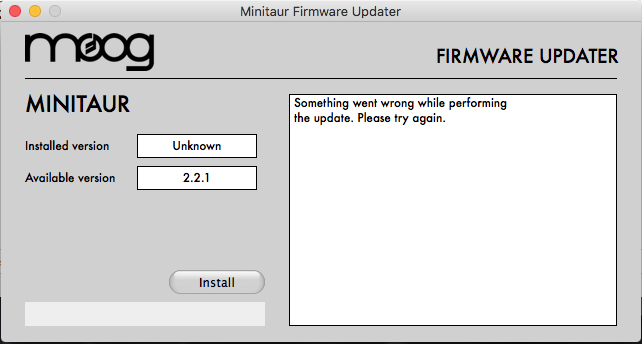
Following is Minitaur firmware 2.2.1RC1 release candidate.
This is supposed to be the version we will use in production, so it’s highly important to make sure it introduces no regression issues.
The only two fixes in this minor version are still:
LFO Key Trigger did not work, if MIDI SYNC was On but Minitaur was not receiving MIDI clock.
Envelope Release knobs (on hardware) would stop working if Env Release Mode was set to “Independent Decay/Release”, Release was On, and the user pressed the hardware Glide button.
Please install and use your Minitaur and Editor v3.2 extensively. Let us know how it works for you, and if any new issues arise.
Thanks for your cooperation!
UPDATE: Added an automatic updater for both OSX and Windows, embedded in the same downloadable zip file.
Enter bootloader mode: Press and hold VCO1 Wave and VCO2 Wave switches, and while keeping them both pushed plug the power cord into your Minitaur unit. Keep holding the two switches and press the Release switch, then release all switches. You should see the Glide switch LED blinking slowly, which indicates that your Minitaur is now in bootloader mode.
Connect your Minitaur to your computer using a USB cable. Please connect it directly and not using any hub. If Windows starts an automatic driver search, let it install the default drivers.
Load the C6 sysex program and configure C6 midi ports so they point to Minitaur In/Out (“CONFIG”)
Load the ‘Erase Firmware’ file provided in the firmware zip, into the C6 program (“LOAD”)
Click SEND. VCO1 Wave switch LED should blink as the old firmware is being erased. Once completed, VCO1 Wave LED should go dark and Glide LED should keep on blinking slowly.
Load the firmware sysex file into the C6 program and send it to the Minitaur (“SEND”). As the syx file is being transferred, you should be able to see the Midi LED blinking rapidly, and VCO2 Wave LED blinking slowly. Once the firmware update is completed, the Minitaur should reboot automatically. Your Minitaur is now updated with the new firmware.
Run the Minitaur Editor and check for the firmware version by clicking on “Settings”. It should say 2.2.1. If it says anything other than 2.2.1, it means that the beta firmware has not been updated successfully, and you should repeat the process again from the first step.
Restore settings to defaults by clicking on “Restore Default Global Settings” on the Editor’s Settings page.
IMPORTANT: Please do not link this version to anyone outside this forum and beta group. It is still confidential, and may cause different versions carrying the same number of 2.2.1 to co-exist online. We will release it officially the regular way.
Works for me here. Do you do it the following way ?
From manual:
PRESET SHIFT PANEL FUNCTIONS
NEXT PRESET: Press and hold GLIDE and then press OSCILLATOR 1 WAVE switch.
PREVIOUS PRESET: Press and hold GLIDE and then press OSCILLATOR 2 WAVE switch.
SAVE CURRENT PRESET: Press and hold GLIDE and then press & hold RELEASE switch; hold both for 1 second. Settings will be saved in the
currently-active preset location.
SAVE TO A NEW LOCATION: Press GLIDE + RELEASE switches; let go. You’ll see GLIDE and RELEASE LEDs flashing on and off. You can change
presets in the normal way (hold GLIDE button, press OSCILLATOR 1 or 2 buttons to change preset); when you find a preset you want to save over, hold
GLIDE + Press RELEASE to finish saving. Press RELEASE by itself to cancel without saving.
I just made a test and it works indeed, whenever I want to save a preset. Maybe that was my bad, but I still have an issue:
When I go to the Panel Parameters using GLIDE + Waveform 1 + Waveform 2 (a shortcut I don’t see in the documentation, even though it works), every parameter should jump to the physical position of the knobs. I am unsure what should happen with the advanced parameters (those not available physically), or what is the expected behavior
Additionally, it does not behave as I expect it to, the Mod section seems to work erratically:
The Mod Wheel setting is overriden by the VCO LFO AMT and VCF LFO AMT (even though the Settings on the Editor are set to Load Preset Mod Wheel OFF and the Mod Wheel value says 0)
It jumps, and it seems to happen only when I do it from a Push 2 controller using Live. What I mean by jumping is that even though the Mod Wheel setting is set to zero, if I browse through the pages from the Push 2 controller (the Bank sections buttons underneath the screen) the value jumps back to the maximum, so whatever the values are set on the VCO LFO AMT and VCF LFO AMT are effective.
This problem only seems to happen when you are in preset zero, Panel Settings
Can anyone else reproduce it? Ideally using a Push 2 controller on Ableton Live
I recently fresh installed Windows 10 and Minitaur USB Driver v3.30.0 is getting blocked because of a digital signing issue. Here is the error message from device manager:
“Windows cannot verify the digital signature for the drivers required for this device. A recent hardware or software change might have installed a file that is signed incorrectly or damaged, or that might be malicious software from an unknown source. (Code 52)”
Also tried the older 2.23.0.0 driver and had the same problem.
This happens due to a recent Windows 10 update which increases the security requirements for device drivers.
Amos is currently working on updated drivers which are supposed to solve this problem. Will keep everyone updated.
Hi again,
I made a check up and here is the conclusion/correction to my previous statement:
if CV Gate input is assigned to VCO shape, Release or Glide, the LED status on the front panel is not updating the current situation.
I have checked with fw 2.2 and it’s the same thing. I have impression that it worked in previous versions, would be nice to have it working if possible. Thanks a lot.
(I am using Pigtronix Dual Expression Pedal going through CP-251).
Is someone managing to send values by CC to the “Delay EG Filter”, the “Hold EG Filter” and the “Hold EG amp” ?
These three wonderful functions seems to be “under the under the hood functions” because, they are not editable in the editor,
which will not be a problem, here, if it were possible to control them by CC !
What is very very frustrating is that the Minitaur outputs CC values for these functions (CC 103, 105; 106)
but any value sent on these CC make the Minitaur to “understand” a zero…
It is the case for everyone ?
If yes…maybe it’s an easy bug to solve
It should be easily great and so useful … =)
if not, help me =)
There is a second thing which is a bit strange about the Legato glide which sends values 0/2, and not 0/65..
I don"t know if this info is useful.
Best regards,
thanks again for the 2.2.1rc1 which solve the KeyTrig/MidiSync problem;
here its the manual about something surely linked to this thing; page 16 :
<<NOTE: When the Minitaur powers up, the settings on the VCO LFO AMOUNT
and VCF LFO AMOUNT controls have a direct effect on the VCO and VCF. This
behavior continues until the Minitaur receives a MIDI Mod Wheel command,
from which point the Mod Wheel takes master control of the LFO modulation
amount set by the Amount controls.>>
What is strange, is when you load “preset zero/control pannel”, the minitaur reacts as it were powered up, even if it was already powered…
The preset zero seems to do not works like the others ones…
About the advanced parameters, here everything seems to be well recorded in the pannel setting preset zero..
I understand this might be related to the way Ableton Live handles the MIDI information. Unfortunately the Mod wheel issue is critical, since it jumps to the max whenever I switch to another parameter page from the Push controller, even when the project is stopped.
I don’t know if anyone else is able to reproduce this, if any other DAW has a similar problem, if this can be solved from the Editor/Firmware or if I should head to Ableton’s support to report a bug, find an unknown feature or at least a workaround